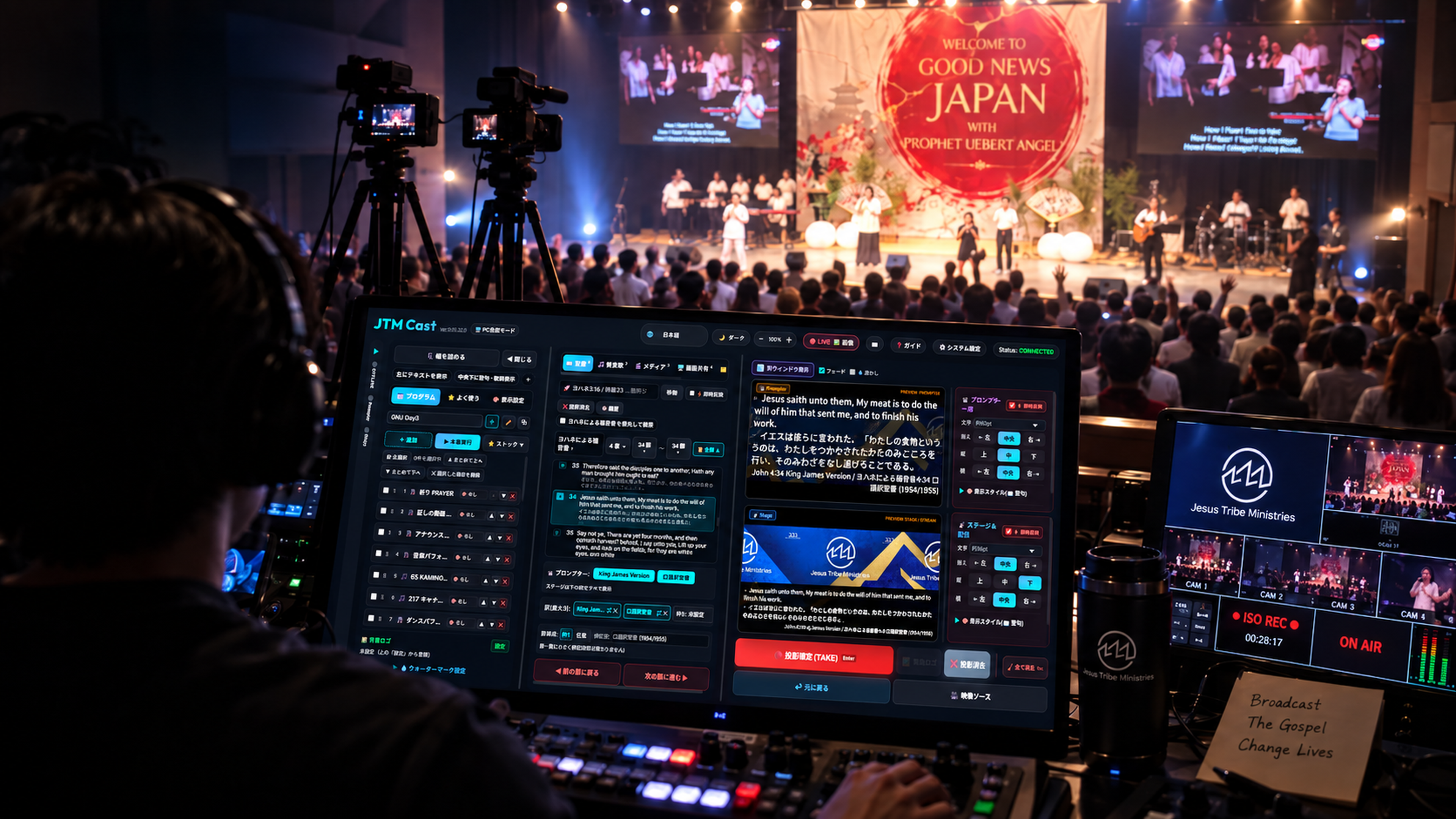
The Gospel, beautifully on screen.
Scripture, hymns and media — one place, from the order of service.
Prepared beforehand, and only what you choose reaches the screen.
… I am made all things to all men, that I might by all means save some.
And this I do for the gospel’s sake, that I might be partaker thereof with you.
1 Corinthians 9:22–23 (KJV)
Paul travelled the world to carry the gospel, and wrote letters to the places he could not reach. Were he here today, he would use whatever technology he could to send that same message further — and he would keep looking for ways to make it land more easily.
JTM Cast exists to help you do exactly that.
Built around how a service actually runs
Prepare beforehand, operate calmly during worship. Every change is previewed first and goes live only when you press TAKE.
Worship program management
Build the order of service in advance — readings, hymns and media in sequence — then step through it during worship.
Scripture display, multiple translations
Search for a passage and project it instantly. Show more than one translation side by side — including English and Japanese versions together.
Hymn lyrics
Find hymns by title, number, or a line of the lyrics, and present them verse by verse with clean, readable styling.
Image & media projection
Upload slides, artwork and video, organise them with tags, and bring them on screen when they are needed.
Prompter & stage outputs
Two output windows: a prompter for the person speaking, and a stage & broadcast view for screens and cameras.
Multiple devices, in sync
Operate from one computer and project from another. Your program, hymns, and settings stay synchronized across devices in real time.
Import your own translations
Bring in the translation your church actually reads from as a CSV, and it sits beside the ones already included — with your own book names, private to your church. How to import →
Move over from PowerPoint or ProPresenter
Years of material come with you. Hymns and lyrics import from ProPresenter; a PowerPoint deck arrives as slides, with its text and pictures where you put them.
Smooth on the day
Lyrics and Scripture change the moment you press TAKE, with no stutter on the screen the congregation sees. Worship does not wait for software.
What it looks like in the room
The operator works on one screen. Each destination gets an output designed for its own purpose.


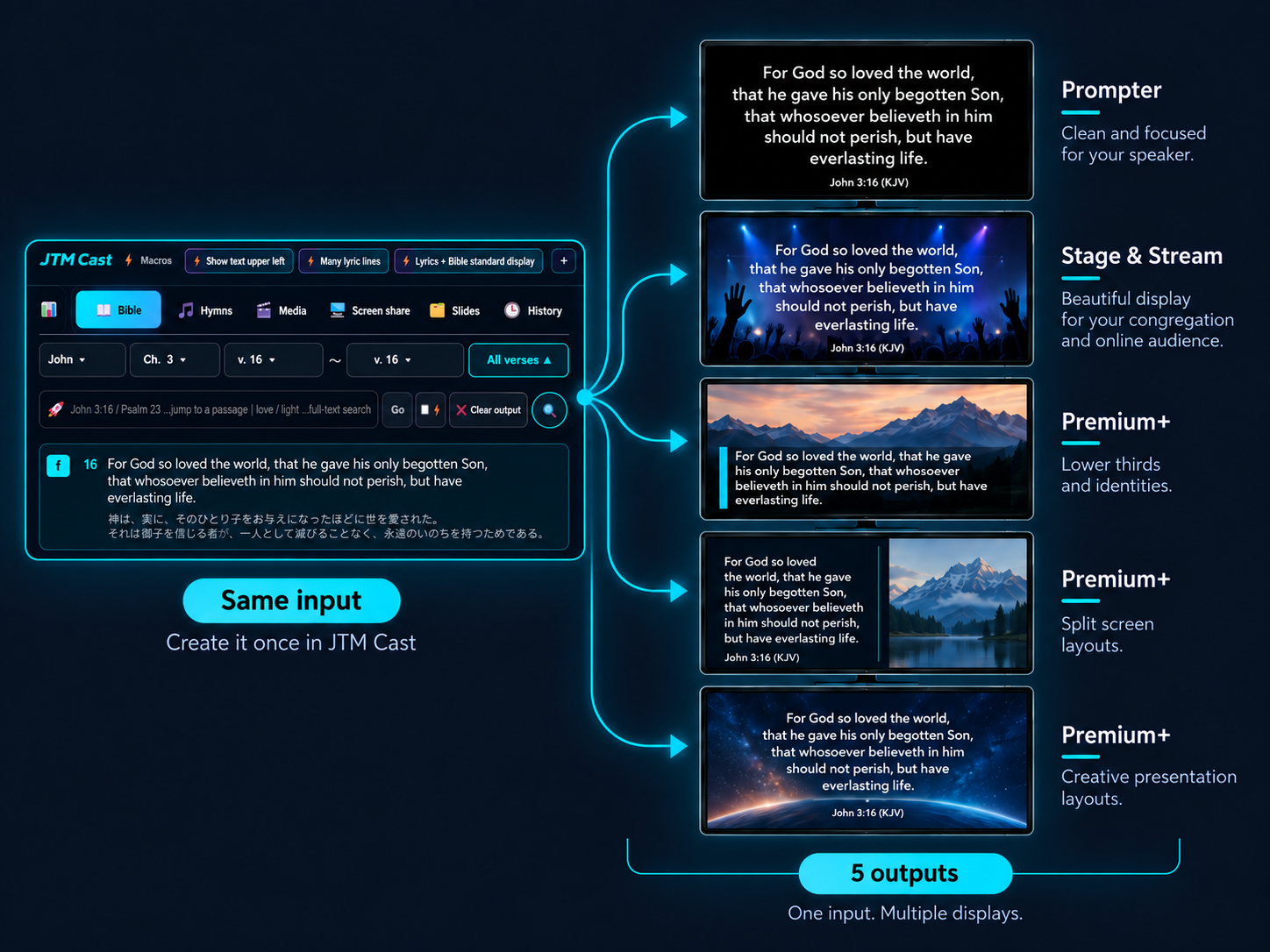
Screens are shown with sample data. The worship scene behind them is an illustration.
How it works
From sign-in to Sunday morning in four steps.
Create your church account
Sign up at jtmcast.com. Each church gets its own private workspace — your data is never visible to other churches.
Prepare the service
Build the program: add Scripture readings, pick hymns, and upload the slides and media you plan to show.
Open the output windows
On the projection computer, open the stage & broadcast window and, if you use one, the prompter window for the speaker.
Preview, then TAKE
During worship, line up the next item in preview and press TAKE when you are ready. Only TAKE changes what the congregation sees.
See it in action
Pick a passage from the order of service, check it in preview, then press TAKE to go live. On the left, the operator’s screen; on the right, what the congregation sees at the same moment.
In use where it matters
JTM Cast is not a prototype. It runs real worship — from weekly services to gatherings of hundreds.

Pricing
One price for your whole church. Cancel any time. The free plan has no time limit.
The longer reads
Three things churches ask about most. The short answer here, the whole of it on its own page.
📖 Bring your own translation
Import the translation your church actually reads from as a CSV — one row per verse. It appears beside the built-in translations, with your own book names, and stays private to your church. Available on every plan, including Free.
📦 How much you can store
The cloud edition has a storage allowance per plan. The local install edition keeps media on your own computer, so churches that use a lot of video are not limited by an allowance.
💻 System requirements
The cloud edition runs in a current browser — nothing to install. The local install edition needs a computer of its own, and streaming asks a little more of it.
Frequently asked questions
Do we need to install anything?
No. The cloud edition runs entirely in a modern web browser at jtmcast.com. There is also a local install edition for churches that want to run JTM Cast on their own computer — it offers the same features plus live streaming.
Can we stream our service to YouTube?
Yes, with the local install edition. It adds video switching and streaming to YouTube Live on top of everything the cloud edition does. The cloud edition focuses on projection and presentation.
Is our church's data private?
Yes. JTM Cast is multi-tenant by design: each church's programs, media, and settings are isolated and never visible to other churches.
Can several people operate it at the same time?
Yes. You can sign in from multiple devices, and changes to programs, hymns, and settings synchronize between them. During live operation, the preview-and-TAKE workflow keeps output changes deliberate.
What can accidentally end up on screen?
Very little. Preview operations never reach the live output — only pressing TAKE updates what the congregation sees. There is also a one-touch way to clear the projection, and an undo for accidental clears.
Can we use our own Bible translation?
Yes. A church administrator can import a translation as a CSV file, one row per verse, and it appears beside the built-in translations — shown with your own book names, and private to your church. Please import only translations your church holds the rights to use.
Which languages does it support?
The app is offered in English and in Japanese — the sign-in screen, the operating console, and the manual all have an English version. A Shona translation is under way; the parts not translated yet appear in English. Scripture can be displayed in multiple translations, including English versions.
Contact us
Questions, quotes, or help getting started. We usually reply within two business days.
If this does not work, email us.
Ready to see it?
Open JTM Cast in your browser, or read the manual to see how everything fits together.